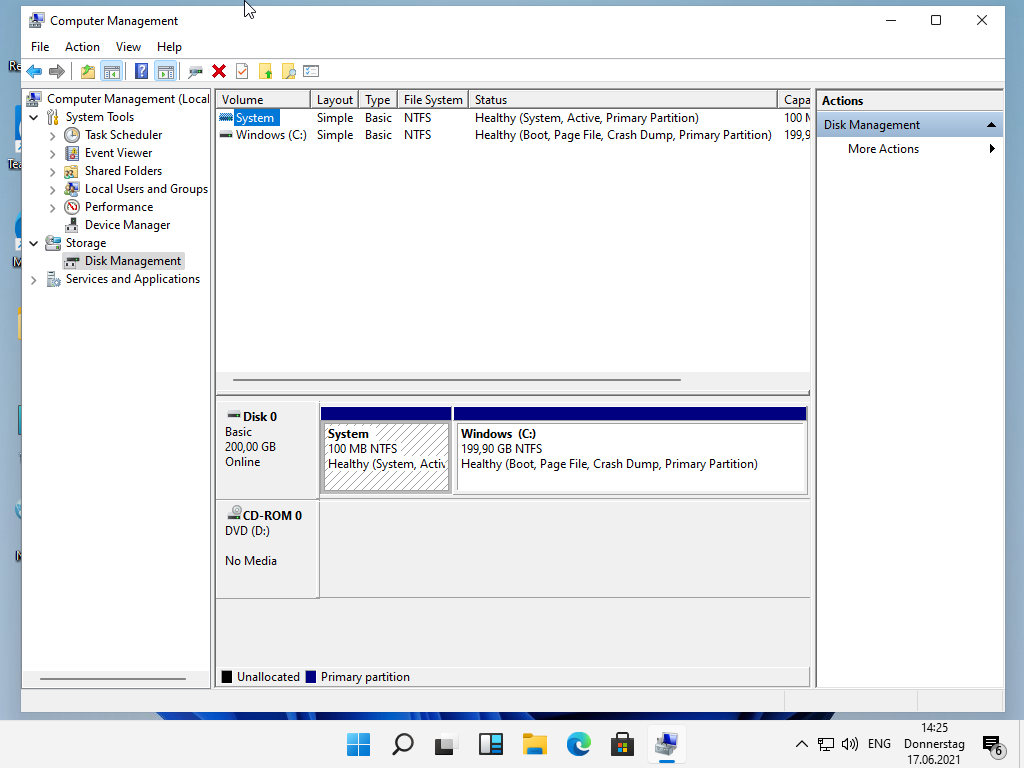


Ich habe doch geschrieben, dass man Windows 11 mit Umwegen auch ohne UEFI installiert bekommt mit diskpart, DISM und bcdboot.
Beiträge von clik!84
-
-
Moin
Hab mir ja ein Externen DVD Brenner zugelegt, wollt ja im neuen PC keinen mehr verbaut haben.
Vorn am Gehäuse sind ja 2 x USB 3.0 Ports, wenn ich daran jetzt mein Externen Brenner mit dem Y-USB Kabel anschließ, wird dieser zwar erkannt aber sobald eine Disc drin ist und der versucht die CD einzulesen, meldet Windows das Gerät ab, versucht zwar sich wieder anzumelden aber meldet sich danach wieder ab, sobald die Disc wieder draußen ist, meldet der sich wieder an und bleibt aktiv.
Liegt es jetzt an USB 3.0 weil Brenner USB 2.0 oder ist es egal?Verwende AUSSCHLIESSLICH!!! das originale Kabel des Brenners, KEIN ANDERES.

-
Mein Kassensystem hat 32 Bit only. Es wurde leider erst x64 geleakt.
-

Na dann, lass krachen. :D:D:DHab nur noch mein Kassensystem.
-
Jetzt könnte man mit den Befehlen ein Windows 11 Quäler durchführen.

-
-
ja:
Diskpart
DISM
Bootsect
und
bcdboot -
Habs jetzt endlich geschafft, Windows 11 im BIOS-Modus zu installieren.
Lüppt 1A. Ohne TPM 2.0 und UEFI.
-
Windows 11 OHNE TPM 2.0 installieren+UEFI OHNE Secure Boot.
Hello everyone.
I’ve been watching everyone’s thoughts on Windows 11 and can’t help but notice that everyone’s been installing it via Windows 10 upgrade, or via VM. Like, ugh it’s not natural!
This is how you natively clean install Windows 11.
Note that this will erase all your data, so be sure to use a spare SSD.
Assuming you already have the USB installer, boot into it until you get to the setup.
From the setup screen:
1. Press Shift + F10 to open Command Prompt.
2. Type ‘diskpart’ and press Enter.
3. Create your partitions via diskpart:
3a. Type ‘list disk’ press Enter.
3b. Select your disk ‘sel disk x’ where x = your primary drive. Type ‘clean’ to format the drive. Type "convert gpt" if your drive wasn't already formatted as GPT.
3c. Type ‘create partition efi size=100’ press Enter.
3d. Type ‘format quick fs=fat32 label=“System”’ press Enter.
3e. Type ‘assign letter=“S”’ press Enter.
3f. Type ‘create partition msr size=16’ press Enter.
3g. Type ‘create partition primary’ press Enter.
3h. Format partition by entering command ‘format quick fs=ntfs label=“Windows”’, press Enter.
3i. Type ‘assign letter=“W”’ press Enter.
4. See all your volumes by typing ‘list vol’ and you should see the partitions you just created. The EFI partition may not show up and that’s ok, and you should see your Windows and System partitions with assigned letters. Take note of the assigned letter for your USB installer.
5. Exit diskpart by typing ‘exit’ and press Enter.
6. Type ‘dism /Get-WimInfo /WimFile:X:\sources\install.wim’ and press Enter. (Where X is your USB installer)
7. You should be presented a list of Windows 11 versions assigned via Indexes. Select a version of Windows you want to install and take note of the index number.
8. Now type in ‘dism /Apply-Image /ImageFile:X:\sources\install.wim /Index:n /ApplyDir:W:\’ (Where X is your USB installer, n is the Index number, and W is the Windows partition we created in diskpart). Press Enter and wait.
9. Create the boot loader by typing ‘bcdboot W:\Windows /s S: /f UEFI’ (Where W is the Windows partition, S is the system partition we created in diskpart.)
10. Reboot and enjoy Windows 11 in it’s native glory.
-
Woher habe ich auf einmal die geilen Glaseffekte?

Waren nur von kurzer Dauer: Wieder weg.
 Desktop hat sich aktualisiert.
 -
Wir werden doch sehen, wie sich die Entwicklung von Windows 11 voranschreitet und ob am Ende das mit dem Secure Boot und dem TPM 2.0 sich noch halten lässt.
-
Warum hat die 11 Beta dann noch den BIOS Bootsektor drin?
-
Klappt wirklich nicht, in der Anleitung steht: install.wim in der aktuellen Windows 10 Insider Preview austauschen, aber nichts geht.
-
Hat nicht geklappt. Teste weiter.
-
Kann man von 11 schon mal eine Quälerei machen?
Würde mich mal interessieren, ob man das auch runter bis 286 gedrückt bekommt. xDIch habe eine modifizierte ISO gebaut. Ich kann jetzt Windows 11 auf BIOS installieren.
-
Installiere gerade Windows 11 auf MBR und BIOS.

-

Ja, aber die basteln ja immer wieder erweiterungen, und auch gerne mal protokolle. Absetzen können sich ja noch die javascript interpreter.Mach doch auf deine Seite eine neue Windows 11 Seite auf.
-
Mit nen Win 10 Key oder wie? O.o
Ja die Build ging mit meiner digitalen Lizenz in VMware zu aktivieren.
Mal gucken, wie es sich noch entwickelt.
-
iexplore.exe ist nur mehr ein dummy und er öffnet edge.
endlich werden firmen gezwungen den browser sterben lassen zu müssenGibt bestimmt irgendwann eine ie11.msu für Windows 11.
-
Ich konnte Windows 11 problemlos aktivieren. Außerdem hat Windows 11 kein Wasserzeichen und auch keine Zeitbombe.
Die Einrichtung OHNE Microsoft Konto geht weiterhin.